
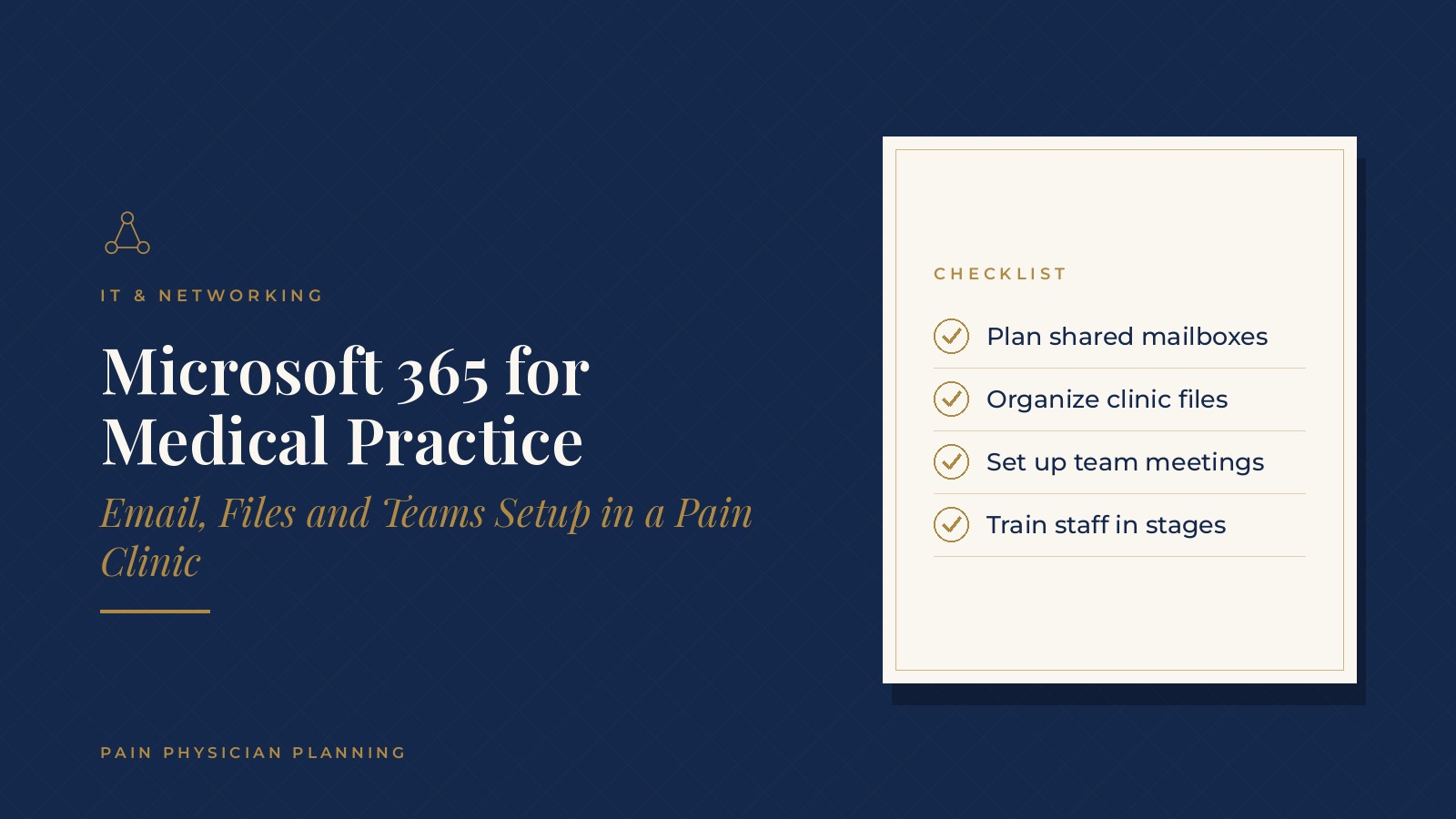
Microsoft 365 for Medical Practice: Email, Files and Teams Setup in a Pain Clinic
Microsoft 365 for medical practice use is a bundle of email, calendars, shared files, online meetings and document tools that many clinics use to run daily work. For a pain clinic, it can give front desk, clinical and administrative staff one place to communicate and keep shared documents organized. In short, Microsoft 365 for medical practice planning starts with a list of who needs what: clinic email addresses, shared mailboxes, a folder structure for files, meeting tools and a sign-in plan. Setting up in stages and training staff in short sessions helps the change stick. This resource from Pain Physician Planning explains how pain clinics commonly plan email, files and Teams meetings, how a rollout is staged, how staff are trained and the questions practices bring to an IT professional.
Key takeaways
- Start with a list of users and shared needs.
- Plan shared mailboxes for front desk and billing teams.
- Organize files with one folder structure.
- Use Teams for meetings and quick staff messages.
- Roll out in stages with short training sessions.
Planning Microsoft 365 for medical practice use
Start with who needs what
Make a list of every person who works in the clinic, including part-time staff and visiting providers, and note what each needs: an email address, calendar access, shared folders or meeting tools. The list becomes the basis for accounts and permissions.
Decide what moves and what stays
Some clinics move only email at first, while others move email, files and meetings together. Writing down what moves, in what order and by what date prevents confusion for staff.
Name the project owner
One person at the clinic, often the administrator, keeps the plan and coordinates with the IT professional. A named owner helps decisions move quickly and keeps staff questions in one place.
Email setup for a pain clinic
Individual and shared mailboxes
Each staff member usually has an individual mailbox. Shared mailboxes for functions such as scheduling, billing questions or general inquiries let several people monitor the same inbox without sharing a password.
Naming and signatures
A consistent naming pattern for addresses and a standard signature block with the clinic name, phone number and website make messages look professional and help recipients know whom to contact.
Calendars and rooms
Shared calendars for procedure rooms, equipment and provider schedules help the front desk and clinical staff see availability in one view. The guide to the pain clinic scheduling template covers how schedules themselves are designed.
Pain Physician Planning can introduce you to independent IT and networking professionals who work with pain management practices on email setup, shared file organization and staff training. To request an introduction, contact us or call or text (972) 616-4581. You can also read about managed IT services for pain clinics.
Files, folders and Teams in a pain clinic
One folder structure
Cloud file storage works best when the whole clinic uses the same folder layout. A common layout has top-level folders for administration, human resources, marketing, operations and training, with clear names inside each.
Sharing with care
Permissions can be set by folder so that each group sees what it needs. Many clinics review sharing settings on a regular schedule and remove access when a person leaves.
Teams for meetings and quick messages
Teams offers online meetings, chat channels and file sharing in one place. Clinics often set up channels for the front desk, clinical staff and management so that quick questions do not clutter email. The guide to the pain clinic front desk describes workflows that a shared channel can support.
Rolling out Microsoft 365 for medical practice teams
Stage the rollout
A common order is accounts first, then email, then files and finally meetings and chat. Each stage gets a short training session and a date when the old way stops. Staging keeps the front desk working while the change happens.
Train in short sessions
Fifteen to thirty minute sessions on one skill at a time, such as finding a shared mailbox or saving a file to the right folder, work better than a single long class. A one-page reference sheet at each desk helps new habits form.
Plan for sign-in and devices
Strong sign-in steps, such as multi-factor sign-in, and updated devices are usually set up with the accounts. The guide to pain clinic cybersecurity basics covers everyday habits that protect accounts, and pain clinic data backup covers keeping copies of important files.
Everyday habits that keep Microsoft 365 useful
Name files clearly
Agreeing on a simple naming pattern, such as the topic, the date and a short description, makes documents easy to find. A one-page guide at each desk helps new staff pick up the habit.
Use calendars for shared resources
Booking procedure rooms, equipment and meeting spaces on a shared calendar prevents double bookings and shows everyone what is available at a glance.
Clean up on a schedule
Once a quarter, many clinics review folders, shared mailboxes and channels, archive old items and remove access that is no longer needed.
Keep a short help list
A single page listing whom to contact for sign-in problems, shared mailbox questions and file access keeps small issues from interrupting patient care.
Putting a rollout plan together
Gather the inputs
Collect the staff list, the list of shared mailboxes, the folder plan and the device list in one document. Having these in one place makes conversations with an IT professional faster and clearer.
Assign roles
Name one person to coordinate decisions, one to lead staff training and one to be the contact for the IT professional. Clear roles prevent delays.
Write the schedule
A one-page schedule with dates for account setup, email changes, file moves and training keeps everyone aligned. Share it with the whole team and update it as plans change.
Plan a check-in after launch
Two to four weeks after the last stage, many clinics hold a short review to ask what is working, what is confusing and what needs another training session. Small fixes at this point make the new tools feel familiar.
Questions to ask an IT professional
Planning questions
- Which accounts and shared mailboxes will be created and who manages them?
- How will existing email and files be moved and in what order?
- What training sessions are planned and who leads them?
- Who is the contact for questions during and after the rollout?
- How are accounts removed when a staff member leaves?
Keep administrator access with the clinic
Many practices ask that at least one administrator account stay under the clinic's own control, with the IT professional added as a delegated user. That way the practice keeps access if the working relationship changes.
Frequently asked questions
What is Microsoft 365 for a medical practice?
It is a bundle of email, calendars, file storage, online meetings and document tools that clinics use to communicate and share files, set up with accounts for each staff member.
What do pain clinics usually set up first?
Many start with email and calendars, add shared mailboxes for functions like scheduling, then move files into a shared folder structure and finally add Teams meetings and chat.
What is a shared mailbox?
It is an inbox that several staff can monitor and answer from, such as a scheduling or general inquiries address, without sharing a single person's password.
How long does a rollout take?
It depends on clinic size and what moves, but many practices stage the work over several weeks, with short training sessions at each step.
Who sets up the accounts?
An independent IT professional usually sets up accounts and settings, while a clinic administrator coordinates the plan and approves who gets access.
Request an introduction
Pain Physician Planning can introduce you to independent IT and networking professionals who work with pain management practices on email setup, file organization and rollout planning. Learn more about managed IT services for pain clinics, then take the short Pain Physician Planning Business survey and request an introduction. You can also call or text (972) 616-4581, or contact us. The form goes to [email protected].