
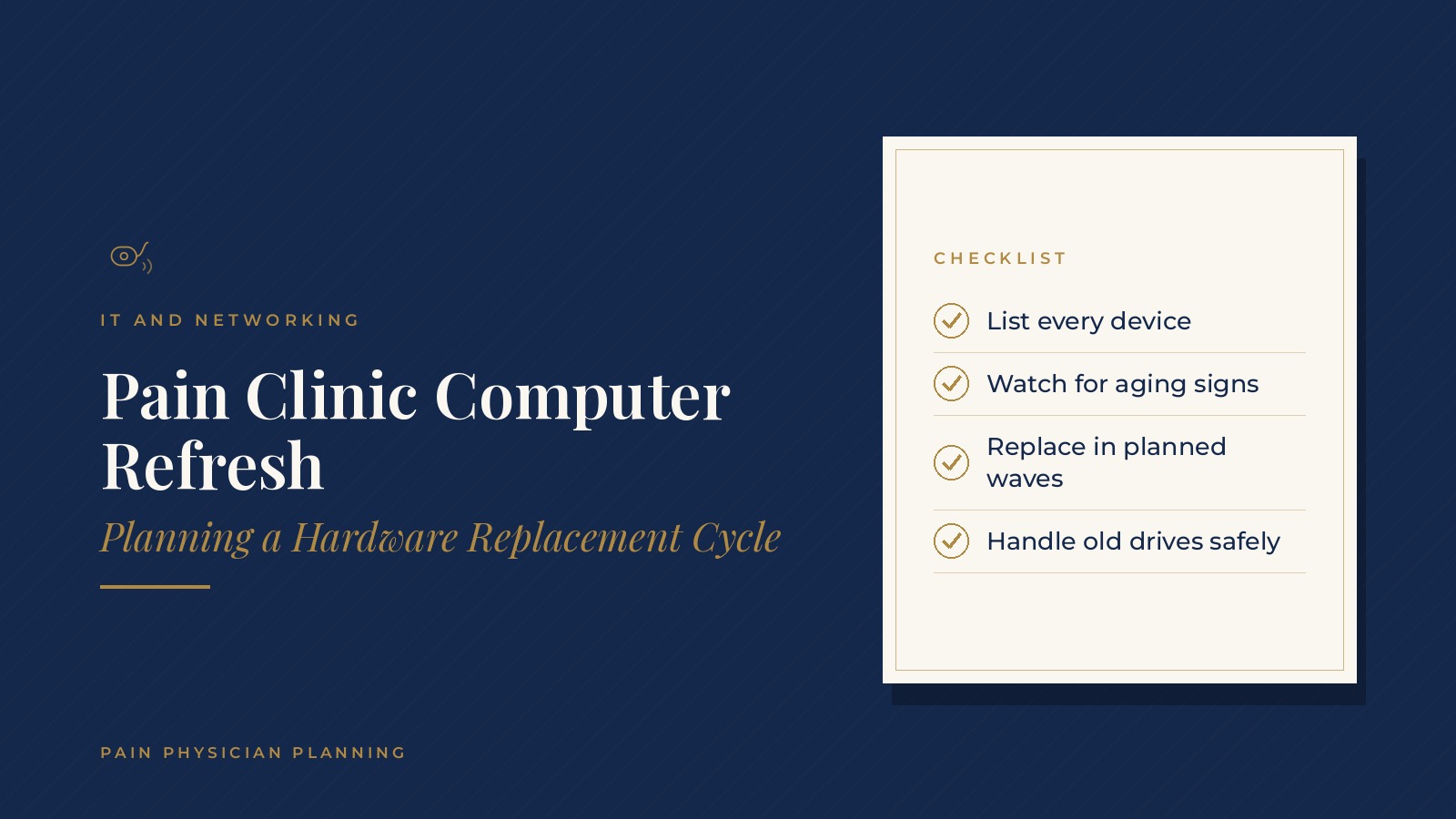
Pain Clinic Computer Refresh | Planning a Hardware Replacement Cycle
A pain clinic computer refresh is a planned replacement of the clinic's aging desktops, laptops and related hardware, done in a set order instead of waiting for each device to fail. A steady refresh plan keeps check-in, charting and scheduling moving and avoids a slow morning caused by one tired workstation.
In short, a pain clinic computer refresh usually starts with a complete device inventory, uses clear signs to decide which machines are aging, replaces them in planned waves on a regular cycle, moves data and settings carefully and handles old devices and drives with care.
This resource from Pain Physician Planning explains why clinics plan refreshes, how to build an inventory, how replacement cycles work, what setup involves and the questions practices often bring to a managed IT professional.
Key takeaways
- Keep a complete device inventory.
- Watch for clear signs of aging hardware.
- Replace devices in planned waves.
- Move data and settings with a checklist.
- Handle old drives with care.
Why a pain clinic computer refresh matters
Slow devices slow the whole day
A workstation that takes minutes to start or locks up during check-in creates a line at the front desk and delays in the exam rooms. Small delays repeated across a busy clinic day add up.
Planned work beats emergencies
Replacing a few machines on a schedule is calmer than scrambling when a device stops working on a procedure day.
Current software needs current hardware
Operating system updates, scheduling tools and charting systems often need newer hardware to run well. Older machines may stop receiving updates, which makes them harder to keep secure.
Building a device inventory
What to list
A simple inventory notes each device, its location, who uses it, its age, its operating system and its warranty status. Printers, scanners, check-in tablets and label printers belong on the list too.
Where the information comes from
A managed IT professional can often pull much of this from management tools, then confirm it with a quick walk through the clinic.
Keeping it current
The inventory works best when it is updated each time a device is added, moved or replaced, so the next refresh starts from accurate information. The pain clinic managed IT services guide explains how ongoing support often includes this tracking.
Peripherals count too
Label printers, signature pads, scanners and check-in tablets often age on their own timeline. Listing them with the computers keeps them from being forgotten during a refresh.
Pain Physician Planning can introduce you to independent managed IT professionals who work with pain management practices on hardware planning, device inventories and workstation setup. To request an introduction, contact us or call or text (972) 616-4581. You can also read about managed IT services for pain clinics.
Signs a computer is aging
Performance signs
Long start times, frequent lockups, fans running loudly and programs that crash during busy periods are common signs that a machine is wearing out.
Support signs
An operating system that no longer receives updates, a warranty that has ended or parts that are hard to find all point toward replacement.
Fit signs
Sometimes a device still works but no longer fits the job, such as a front desk computer that cannot drive two monitors or a laptop too heavy for a physician who moves between rooms.
Planning replacement cycles
A regular cycle
Many practices plan to replace computers on a set cycle, often every few years, and spread the work so only part of the fleet changes at once.
Waves by role
Replacing devices in waves, such as the front desk first, then exam rooms, then back office, keeps each group's setup consistent and limits disruption.
Standard models
Choosing a small set of standard models for each role makes setup, support and spare parts simpler.
Timing around the schedule
Swaps are often planned for slower afternoons, evenings or days with lighter procedure schedules, so the clinic keeps running while devices change.
Operating system upgrades
When a major operating system version reaches the end of its support period, many clinics fold the upgrade into the refresh plan. Machines that can run the new version are upgraded and tested, while machines that cannot are moved up the replacement list.
Setting up new devices
A setup checklist
A written checklist for each role covers the operating system, updates, security tools, printers, scanners, shortcuts and the programs each person needs.
Moving data and settings
Files, browser bookmarks and saved settings are moved with care, and most clinic data ideally lives in shared or cloud locations rather than on single machines. The pain clinic data backup guide covers how that data is usually protected.
Testing before go-live
Before staff return to a refreshed station, someone usually signs in, prints a test page, scans a document and opens the scheduling and charting systems to confirm everything works.
Staff orientation
A quick walkthrough for each user on any changes, such as a new monitor layout or sign in step, keeps the first morning on new hardware smooth.
Handling old devices and drives
Wiping or destroying drives
Old computers can hold clinic data, so drives are usually wiped with proper tools or physically destroyed by a qualified IT professional before any device leaves the building.
Keeping a record
Many practices keep a short record of each replaced device, what happened to its drive and the date, alongside the inventory.
Reusing where it fits
Some devices that are too slow for clinical work can still serve as spare units or training stations, as long as they continue to receive updates.
Questions practices bring to a managed IT professional
Common planning questions
- Which devices are oldest or no longer receive updates?
- What refresh cycle fits the clinic's size and schedule?
- Which standard models suit the front desk, exam rooms and physicians?
- How will old drives be wiped or destroyed?
Related planning
A refresh is a good moment to review the clinic network and security tools. The pain clinic cybersecurity basics guide covers the habits that often go with new hardware.
Keeping records in the clinic's name
Many practices keep the device inventory, warranty details and vendor accounts in practice accounts, with outside professionals added as users.
Frequently asked questions
What is a pain clinic computer refresh?
It is a planned replacement of aging desktops, laptops and related hardware, done in a set order instead of waiting for devices to fail.
How often do clinics replace computers?
Many practices replace computers on a regular cycle, often every few years, and spread the work so only part of the fleet changes at once.
What signs show a computer needs replacing?
Common signs include slow start times, lockups, crashes during busy periods, ended warranties and an operating system that no longer receives updates.
What happens to old clinic computers?
Drives are usually wiped with proper tools or physically destroyed by a qualified IT professional before a device leaves the building.
Who usually plans a computer refresh?
Many clinics plan it with a managed IT professional who keeps the inventory, suggests standard models and handles setup and testing.
Request an introduction
Pain Physician Planning can introduce you to independent managed IT professionals who work with pain management practices on computer refresh planning, device inventories and workstation rollouts. Learn more about managed IT services for pain clinics, then take the short Pain Physician Planning Business survey and request an introduction. You can also call or text (972) 616-4581, or contact us. The form goes to [email protected].